Skip to content
EG Sigma Community

EG Sigma Community

  • GuidesExpand
    • Getting Started
    • Basic Sigma
    • Libraries
    • Settings
    • Autodesk Integration
    • BIM 360
    • Revit
    • PlanSwift
    • Complete your estimate
    • Integration/Apps
    • Insight & Key Figures
    • Other
  • Support
  • Courses
  • EG.DK
EG Sigma Community
EG Sigma Community

Autodesk Integration

8
  • BIM 360: Installation and setting up the integration
  • Adds and Cuts – Adding Absolute or Percent Values
  • Adding costs to the model estimate
  • Importing the sample model into Sigma
  • Connecting Sigma to the Revit sample model
  • Save and open your estimate from BIM360 Docs
  • Connecting Sigma to the sample model
  • Installing Sigma Autodesk Integrations for Revit and BIM360

Basic Sigma

17
  • Activating Your Sigma License
  • Adjusting the Sales Price
  • Creating a New Estimate in Sigma
  • Recover an Earlier Version of a Sigma Estimate
  • Setting Automatic Markup: Profit
  • Setting Automatic Markup: Overhead
  • Adding Resources
  • Creating your Work Breakdown Structure
  • Start a New Estimate from a Template
  • Printing Reports
  • Checking Cost Prices
  • Adjust the sales price with supplements/deductions
  • Add your Company Logo to your reports
  • Setting Automatic Markup
  • Import CSV or Paste from Excel
  • Categories Explained
  • Add and remove a bookmark

BIM 360

3
  • Adding costs to the model estimate
  • Save and open your estimate from BIM360 Docs
  • Connecting Sigma to the sample model

Complete your estimate

4
  • Adjusting the Sales Price
  • Printing Reports
  • Checking Cost Prices
  • Adds and Cuts – Adding Absolute or Percent Values

Getting Started

3
  • Architect: Getting started
  • Subcontrator: Getting started
  • Contractor: Getting started

Insight & Key Figures

2
  • Adding Key Figures to the Banner
  • Key Figures

Integration/Apps

8
  • Installing the Planswift Integration
  • Editing Your Planswift Take Off
  • Creating a New Estimate with Planswift
  • Connect Settings, Revit
  • Importing an Entire Planswift Take Off
  • Bluebeam – Exporting to Sigma
  • Sigma Procore Integration
  • Sigma Excel Tender List Designer

Libraries

8
  • Importing a Pricelist (CSV File)
  • Making a New Library and Adding Items
  • Editing your Library
  • Reusing an Assembly
  • Updating from a Library or Price List
  • RS Means Guide
  • Installing RSMeans
  • Using RSMeans in Your Estimate

Other

6
  • What to do if Your Files are not Opening in Sigma
  • Run Sigma on Mac computer
  • Renew study license & update installation
  • Troubleshooting connection errors
  • Can’t activate library/addin – shows XML error
  • Sigma Educational package / Sigma Studie-pakke

PlanSwift

4
  • Installing the Planswift Integration
  • Editing Your Planswift Take Off
  • Creating a New Estimate with Planswift
  • Importing an Entire Planswift Take Off

Revit

3
  • Adding costs to the model estimate
  • Importing the sample model into Sigma
  • Connecting Sigma to the Revit sample model

Settings

12
  • Adding and Changing a Category
  • Add New Categories and Units “on the fly”
  • Deleting a Category
  • Find the license number for Sigma
  • See Which Version of Sigma You Have
  • Changing the Path for your Sigma Folders
  • Moving your Sigma License to Another Computer
  • Create an Estimate Template
  • Making more Columns Visible in an Estimate
  • Changing and Deleting a License Number
  • Exploring the Settings Window
  • Categories Explained

Release Notes

16
  • Release Notes 6.0
  • Release Notes 6.5
  • Release notes Sigma 7.0
  • Release notes Sigma Autodesk Integration 3.0 App
  • Release notes 7.1.2
  • Release notes 7.1.3
  • Sigma Excel Cost Library Tool 1.0.2
  • Release notes Sigma Autodesk Integration 3.1 App
  • Release notes 8.0.0
  • Release noter 8.0.0
  • Release notes 8.1.0
  • Release notes – EG MesterData Maler 1.9
  • Release Notes
  • Release notes 8.3.1-8.3.2
  • Release notes – EG Sigma LCA 2.0
  • Release notes – EG MesterData Maler 2.0
View Categories
  • Home
  • Docs
  • Integration/Apps
  • Sigma Procore Integration

Sigma Procore Integration

6 min read

Edition:
Level:
all Sigma editions
medium

Sigma Procore App enables you to upload an estimate (aka Sigma document) to Procore website, to create a Project budget

(for installation: scroll down)

How to use Sigma Procore App #

Work flow to upload a Sigma estimate to Procore #

1 – Connect to Procore project #

Preconditions #

Before uploading an estimate from Sigma to Procore, you need to have following in place:

  • User registration in Procore
  • User assignment to company
  • User assignment to project(s)


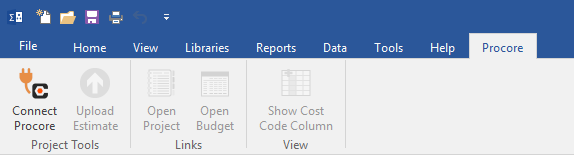
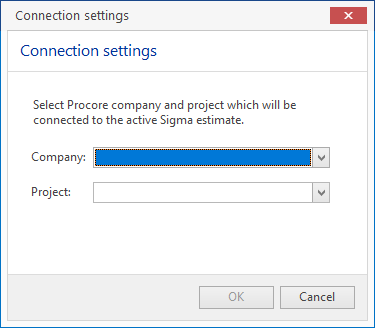
1. Click Connection Settings button (Procore ribbon, Project Tools group)
 

Connection settings dialobox opens


2. Select Company from dropdown list
3. Select Project from dropdown list
4. Click OK
 

Dialog box closes
Sigma estimate and Procore project is now connected


To switch to another Procore project click Connection Settings button againg


Continue with 2 – Upload from Sigma to Procore


2 – Upload from Sigma to Procore #

IMPORTANT #

The integration uses Sigma’s bookmarks D, E and F, so before runing the Upload process make sure these bookmarks are not in use


1. Open the estimate (aka Sigma document)
2. Click Upload Estimate button (Procore ribbon, Project Tools group)
 

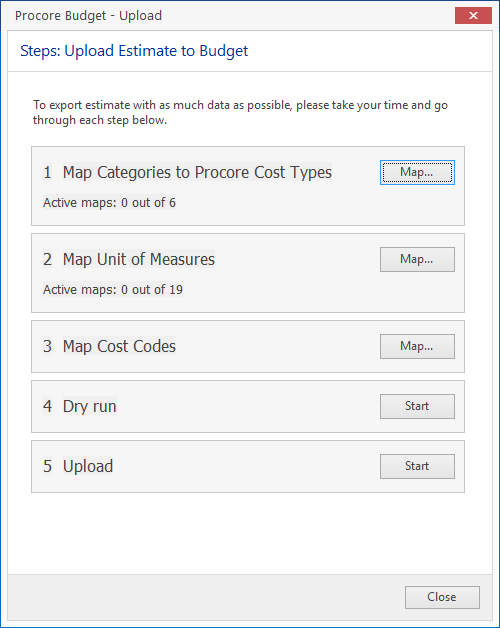
Procore Budget – Upload dialog box opens, showing the 5 steps of exporting from Sigma to Procore

3 1 Map Categories to Procore Cost Types
  3.1 Click Map… button next to 1 Map Categories to Procore Cost Types
   

Sigma Enterprise – Estimation, Automatically identified and mapped: X values info box opens, indicating Auto map process has been run – X being the number of auto mapped Sigma categories

  3.2 Click OK to close info box
   

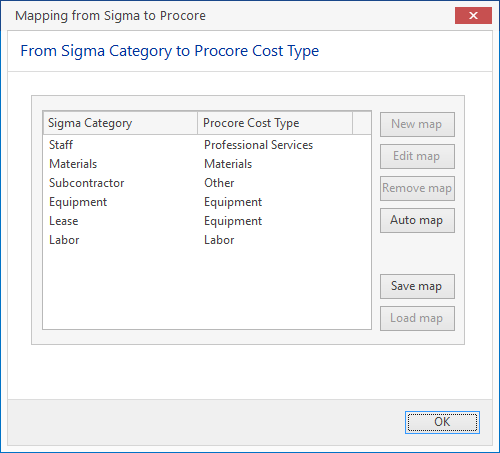
Mapping from Sigma to Procore dialog box opens

  3.3

In the dialog box you can click

  • New map to map a Sigma category to a Procore Cost Type (clickable only when Sigma category needs mapping)
  • Edit map to change a mapping

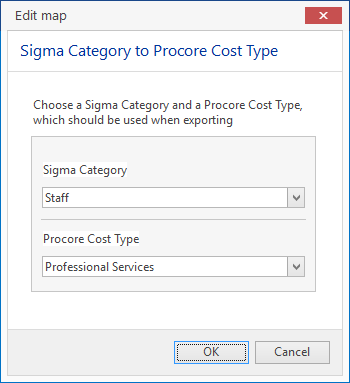
    Edit map dialog box opens

    • Select Sigma Category to map, from dropdown list
    • Select Procore Cost Type to map with, from dropdown list
    • Repeat until all Sigma categories are mapped
  • Remove map to delete a mapping
  • Auto map to run an automatic matching for Sigma categories with Procore Cost Types
  • Save map to save mapping for later reuse
  • Load map to reuse a saved mapping
4 2 Map Units of Measures
  4.1 Click Map… button next to 2 Map Units of Measures
   

Sigma Enterprise – Estimation, Automatically identified and mapped: X values info box opens, indicating Auto map process has been run (“X” being the number of auto mapped Sigma units)

  4.2 Click OK to close info box
   

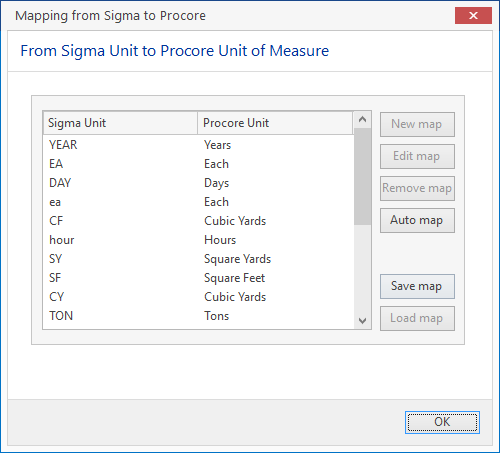
Mapping from Sigma Unit to Procore Unit of Measure dialog box opens

  4.3

In the dialog box you can click

  • New map to map a Sigma unit to a Procore unit (clickable only when Sigma category needs mapping)
  • Edit map to change a mapping

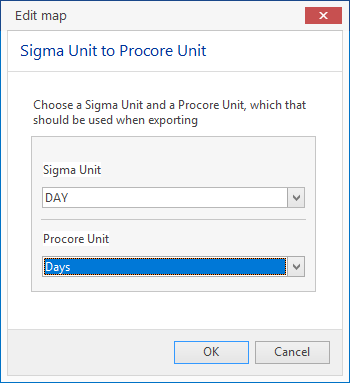
    Edit map dialog box opens


    • Select Sigma Unit to map, from dropdown list
    • Select Procore Unit to map with, from dropdown list
    • Repeat until all Sigma units are mapped
  • Remove map to delete a mapping
  • Auto map to run an automatic matching for Sigma units with Procore Units
  • Save map to save mapping for later reuse
  • Load map to reuse a saved mapping
5 3 Map Cost Codes
  5.1 Click Map… button next to 3 Map Cost Codes
   

Import and map cost codes dialog box opens, indicating Auto map process has been run (X being the number of auto mapped Sigma units)

  5.2

In the dialog box you can mark check box Automatically assign cost codes to RSMeans and BNI lineitems

  • New map to map a Sigma unit to a Procore unit
   

Sigma Enterprise – Estimation, Successfully mapped: X lineitems out of total Y items info box opens, indicating upload process has finished (“X” being the number of mapped Sigma line items and “Y” being total number of Sigma line items)

6 4 Dry run
  6.1 Click Start button next to 4 Dry run
   

Dry run Result info box opens, showing how many Sigma line items can by mapped by Procore Cost Code, and how many Sigma line items can be mapped by Procore Cost Types (line items that fail to be mapped are bookmarked for easy finding)

  6.2 Click Close to close the info box
   

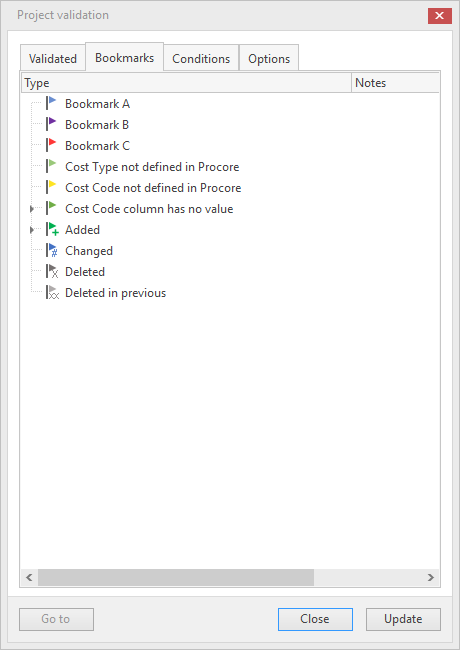
Project validation dialog box opens

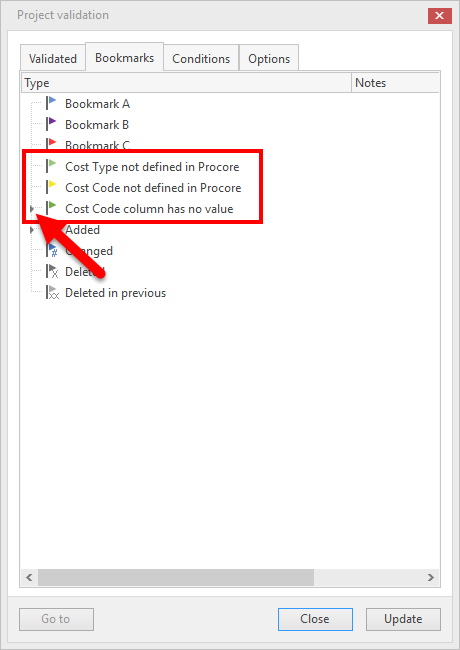
  6.3 Click Bookmarks tab of Project validation dialog box
   

3 bookmarks are used by the mapping process

  • Cost Type not defined in Procore
  • Cost Code not defined in Procore
  • Cost Code column has no value

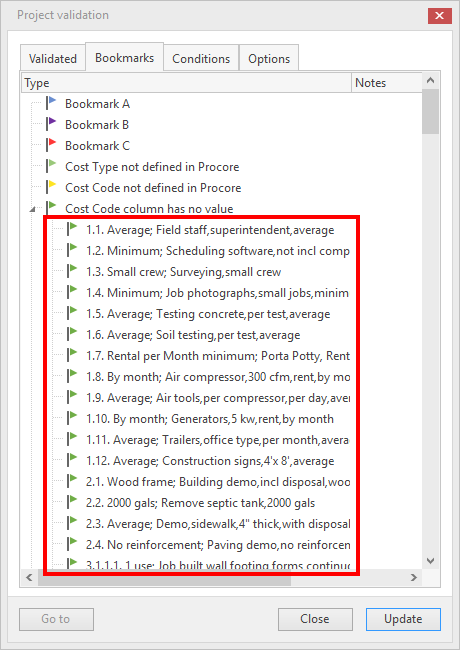
A right-pointing arrow head next to a flag indicates the bookmark is set for at least one line item – click the arrow to expand the list for line items have failed to be mapped and double-click a line item to jump to that item

  6.4

If any of the bookmarks

  • Cost Type not defined in Procore
  • Cost Code not defined in Procore
  • Cost Code column has no value

is in use (indicated by a right-pointing arrow head next to the flag) do as follows:

Expand the list of bookmarked line items

  1. Double-click a line item in the list to jump to that line item
  2. Correct the reason for the line item not being mapped
  3. Return to Project validation dialog box
  4. Repeat steps 1-4 until all bookmarked line items are corrected
  5. Click Close to close Project validation dialog box
   

  6.5 Click Start button next to 4 Dry run one more time to verify that all line items can be mapped
7 5 Upload
  7.1 Click Start button next to 5 Upload
   

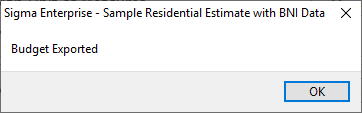
Sigma Enterprise – Estimation, Budget Exported info box opens, indicating upload process has finished

  7.2 Click OK to close info box

We recommend checking overall Total Cost of estimate against Procore Original Budget(Report Grand Total) to validate uploaded data.


Additional features #

Open Procore Project #

1. Click Go to Project button (Procore ribbon, Project Links group)
 

The Procore project opens in your web browser

Open Procore Project Budget #

1. Click Go to Budget button (Procore ribbon, Project Links group)
 

The Procore project budget opens in your web browser

Show / Hide Cost Code Column in Sigma #

1. Click Show Cost Code Column button (Procore ribbon, View group)
 

Cost code field column is visible

2. Click Hide Cost Code Column button (Procore ribbon, View group)
 

Cost code field column is hidden


Installation and uninstallation #

Installation of Sigma Procore Integration app #

1. Go to Sigma Estimates Webshop
2. Download Procore Integration package file
3. Open file location for downloaded file
4. Start Sigma application
5. Drag and drop sigmapackage file from download location to Sigma application window
 

Once installed in Sigma the Procore integration can be found in it’s own ribbon


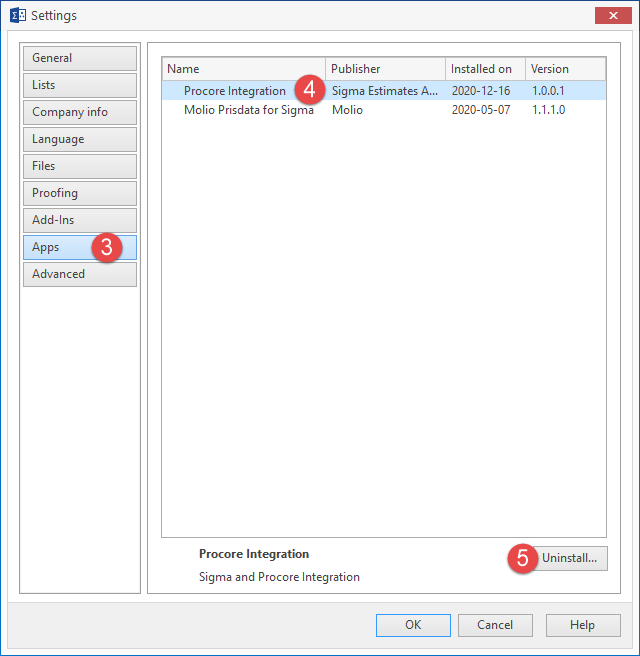
Uninstallation of Sigma Procore Integration app #

1. Start Sigma application
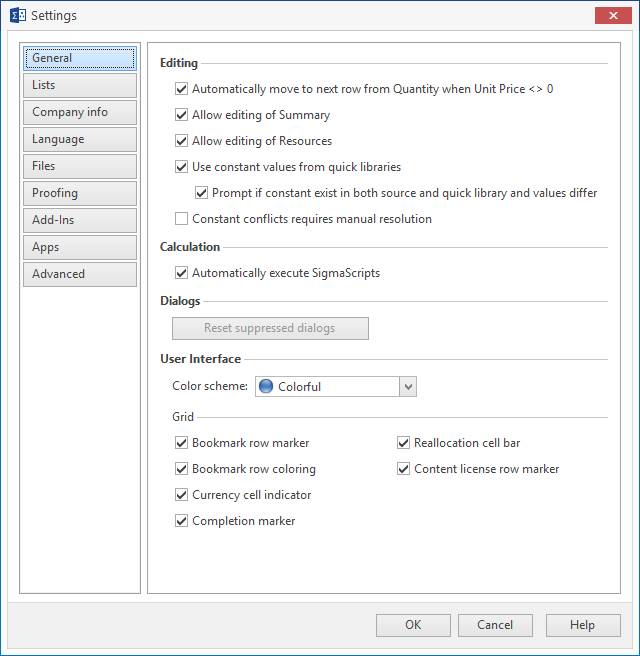
2. Click File > Settings
 

Settings dialog box opens

3. Click Apps tab (left hand side of dialog box)
4. Select Procore Integration application
5. Click Uninstall…
 

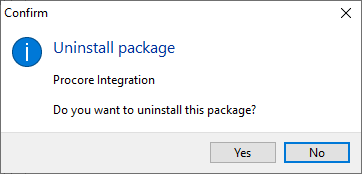
Confirm Procore Integration Do you want to uninstall this package dialog box opens

6. Click Yes
 

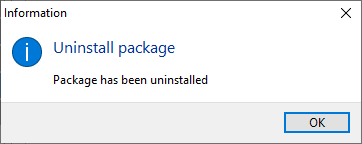
Uninstall package – Package has been uninstalled information box confirms uninstallation

7. Click OK to close information box
8. Click OK to close Settings dialog box


Updated on December 16, 2020

What are your Feelings

  • Happy
  • Normal
  • Sad

Share This Article :

  • Facebook
  • X
  • LinkedIn
  • Pinterest
Bluebeam – Exporting to SigmaSigma Excel Tender List Designer
Table of Contents
  • How to use Sigma Procore App
    • Work flow to upload a Sigma estimate to Procore
    • 1 - Connect to Procore project
      • Preconditions
    • 2 - Upload from Sigma to Procore
      • IMPORTANT
        • Additional features
    • Open Procore Project
    • Open Procore Project Budget
    • Show / Hide Cost Code Column in Sigma
  • Installation and uninstallation
    • Installation of Sigma Procore Integration app
    • Uninstallation of Sigma Procore Integration app

© 2026 EG Sigma Community

  • Guides
    • Getting Started
    • Basic Sigma
    • Libraries
    • Settings
    • Autodesk Integration
    • BIM 360
    • Revit
    • PlanSwift
    • Complete your estimate
    • Integration/Apps
    • Insight & Key Figures
    • Other
  • Support
  • Courses
  • EG.DK